

Creating professional content is now easier than ever. You don’t need years of training or expensive software. AI video generators for beginners make it simple to bring your ideas to life. They handle the hard parts, so you can focus on your creative vision.
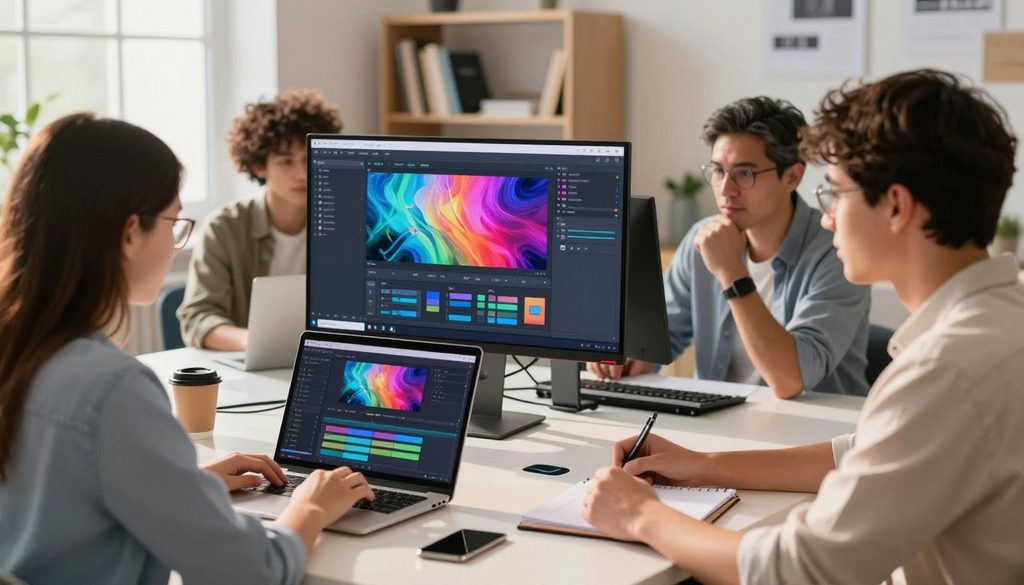
This guide looks at eight powerful platforms. You’ll see Canva, InVideo AI, VEED, and CapCut. We also check out Pictory, HeyGen, Synthesia, and Adobe Express. You’ll learn how to use them to make great videos.
We give tips on pricing and safety. This helps keep your workflow smooth. Whether you’re building a brand or telling a story, these tools are a great start.
Key Takeaways
- Discover user-friendly platforms that require zero prior editing experience.
- Compare top-tier tools like Canva, InVideo AI, and Synthesia to find your match.
- Learn essential tips for effective prompting to get high-quality results.
- Understand the basics of pricing models and safety features before you commit.
- Gain confidence in your ability to produce professional-grade media quickly.
What Beginners Should Know Before Choosing an AI Video Generator
Before starting your first project, it’s good to know how these tools work. The world of AI video creation has changed a lot. Now, you can use powerful tools without needing years of training.
How AI video generators turn prompts, scripts, and media into videos
Most text-to-video platforms work by turning your written input into a visual story. Just give them a script or a short prompt. Then, they pick the right stock footage, create voiceovers, and add transitions.
You can also add your own media, like logos or photos, to make it your own. This way, the AI makes a draft that you can use as a starting point for your project.
Which video projects these tools can create
These tools are great for many tasks, both personal and professional. Whether you’re growing a brand or sharing a hobby, there’s a template for you.
- Social media posts for platforms like Instagram or TikTok.
- Engaging presentations for school or business meetings.
- Educational explainers and training materials.
- Quick announcements or promotional content for small businesses.
Why ease of use matters more than advanced editing controls
When you’re new, simplicity is your best friend. While advanced software has lots of options, beginner-friendly AI video tools are easy to use. They help you avoid feeling lost.
Good AI video editing should be easy to understand. It’s better to have clear controls than lots of complicated features. This way, you can focus on your message and creativity. You’ll spend less time figuring out the software and more time making great content.
Best AI Video Generators for Beginners
Choosing the best AI video generator depends on your creative goals and comfort level. With many options, finding the right one can make your work easier and more fun.
Canva for simple social media videos and presentations
Key features, strengths, limitations, and ideal users
Canva is great for making social media videos and presentations. It has lots of video templates that are easy to use.
It’s not for advanced editing, but it’s perfect for beginners. It’s great for small businesses and social media managers.
InVideo AI for turning written ideas into complete videos
InVideo AI turns text into full videos. It’s a great tool for beginners who want to make videos easily.
Key features, strengths, limitations, and ideal users
It makes scripts, picks stock footage, and adds voiceovers. It might lack control over frames, but it’s great for quick videos.
VEED for browser-based editing with AI assistance
Key features, strengths, limitations, and ideal users
VEED is a powerful tool for editing in your browser. It’s easy to use and great for auto-captioning and removing background noise.
CapCut for short-form videos and creator-friendly editing
Key features, strengths, limitations, and ideal users
CapCut is top for making short-form videos on mobile and desktop. It has cool effects and stickers for TikTok and Instagram.
It’s easy to use but can be too busy for simple edits. It’s best for influencers and social media fans.
Pictory for converting scripts, articles, and recordings into videos
Key features, strengths, limitations, and ideal users
Pictory is great for turning scripts and articles into videos. It makes long content into short summaries.
“AI is not here to replace human creativity, but to act as a powerful catalyst that helps us express our ideas faster and more effectively.”
HeyGen for avatar-led explainers and business content
Key features, strengths, limitations, and ideal users
HeyGen is a top AI avatar video generator. It brings scripts to life with digital presenters. It’s perfect for personalized videos and explainers.
It’s a bit pricey, but the avatars are top-notch. It’s great for sales teams and corporate communicators.
Synthesia for polished training and workplace videos
Key features, strengths, limitations, and ideal users
Synthesia is professional training video software. It’s for internal communications and learning. It makes high-quality videos without needing a camera crew.
Adobe Express for quick branded video projects
Key features, strengths, limitations, and ideal users
Adobe Express is a strong AI presentation maker. It helps keep your brand consistent. It’s perfect for branded videos that need a professional look but don’t require deep design skills.
| Tool | Primary Use Case | Best For |
| Canva | Social Media | Design-focused beginners |
| InVideo AI | Script-to-Video | Fast content production |
| CapCut | Short-form | TikTok/Reels creators |
| HeyGen | Avatars | Business explainers |
| Synthesia | Training | Corporate education |
How to Match a Video Generator to a Beginner’s Goal
Finding the right video generator is the first step to success. There are many AI video generators for beginners out there. Knowing what you need helps you avoid getting lost in too many options.
Choose Canva or Adobe Express for branded slideshows and announcements
For branded videos like business updates or presentations, Canva or Adobe Express are great. They’re easy to use and help you keep your brand consistent. You can easily add your colors and logos to every slide.
Choose CapCut or VEED for TikTok, Instagram, and YouTube Shorts
For short-form video, speed and mobile features are key. CapCut or VEED are perfect for making videos for TikTok, Instagram, and YouTube Shorts. They offer cool music, quick cuts, and auto captions to grab viewers’ attention fast.
Choose InVideo AI or Pictory for script-to-video workflows
For turning written ideas into videos, InVideo AI or Pictory are top choices. They use text-to-video tech to find the right footage or scenes for your script. This is great for bloggers or teachers who want to make their articles into videos.
Choose HeyGen or Synthesia for presenter and training videos
For videos that need a human touch, try an AI avatar video generator. HeyGen or Synthesia are great for training video software. They let you create realistic presenters who speak your script in many languages. Perfect for corporate or educational videos.
Choose Runway when a beginner wants to experiment with generative visuals
For projects that need something special, Runway is the best. It’s for those who want to play with AI-generated visuals and cool effects. It’s a creative space for beginners to try new, high-end looks.
Step-by-Step: Define the Video Before Opening a Tool
Starting a video project is more than just clicking a button. It’s about planning well. This makes your AI video creation smooth and quick. Good planning saves you from later headaches.
Step 1: Identify the audience and desired action
Every video needs to know its audience. Are you talking to customers, team members, or social media fans? Knowing this helps you decide what action you want viewers to take, like clicking a link or signing up for a newsletter.
Step 2: Select the platform, aspect ratio, and target length
Each platform has its own look. TikTok and Instagram Reels need vertical videos, while YouTube likes landscape. Keeping your video short, under 60 seconds, keeps viewers engaged.
Step 3: Gather the script, images, logos, and brand guidelines
Before starting, have all your assets ready. This includes your brand colors, logos, and a good script. With clear instructions and consistent visuals, your video prompts will look professional.
Step 4: Set a realistic goal for the first draft
Don’t expect perfection right away. See your first draft as a starting point to improve. Aim to get the basic structure and flow right first. This makes your project easier to manage.
| Planning Phase | Key Consideration | Action Item |
| Audience | Who is watching? | Define viewer persona |
| Platform | Where will it live? | Set aspect ratio |
| Assets | What is needed? | Gather brand files |
| Expectation | What is the goal? | Draft a rough cut |
Step-by-Step: Create a First AI-Generated Video
Starting your AI video creation journey is exciting. You need a plan and the right tools. Your input is key, even though the AI does most of the work. With a clear plan, you can make a professional video in minutes.
Step 1: Start with a clear text prompt or short script
Every video needs a strong start. Use the text-to-video feature with a clear script. Make sure your script is short and to the point. This helps the AI get your vision right from the start.
Step 2: Select a template, visual style, voice, or avatar
After your script is set, pick a video template that fits your project. You can change the look, pick an AI voiceover, or choose an avatar. These choices shape your video’s style and feel.
Step 3: Review the generated scenes and replace weak suggestions
The first draft is just a start. Use AI video editing tools to check each scene. If something doesn’t fit, swap it with something better from the library.
Step 4: Add captions, music, transitions, and a clear call to action
Make your video better by adding automatic captions. Choose music that fits the mood and smooth transitions. Don’t forget a clear call to action so viewers know what to do next.
Step 5: Export a draft in the correct resolution and file format
Before you’re done, check the export settings. Make sure they’re right for where you want to share your video. Pick the right resolution for quality. Once you’re happy, export and share with your audience.
How to Write Prompts and Scripts That Produce Better Videos
The secret to making great content starts with clear instructions. If you’re vague, the software might guess what you mean. This can lead to videos that don’t quite hit the mark. By making your video prompts precise, you control the final product. This ensures your message connects with your audience.
Give the tool a specific audience, topic, tone, and video length
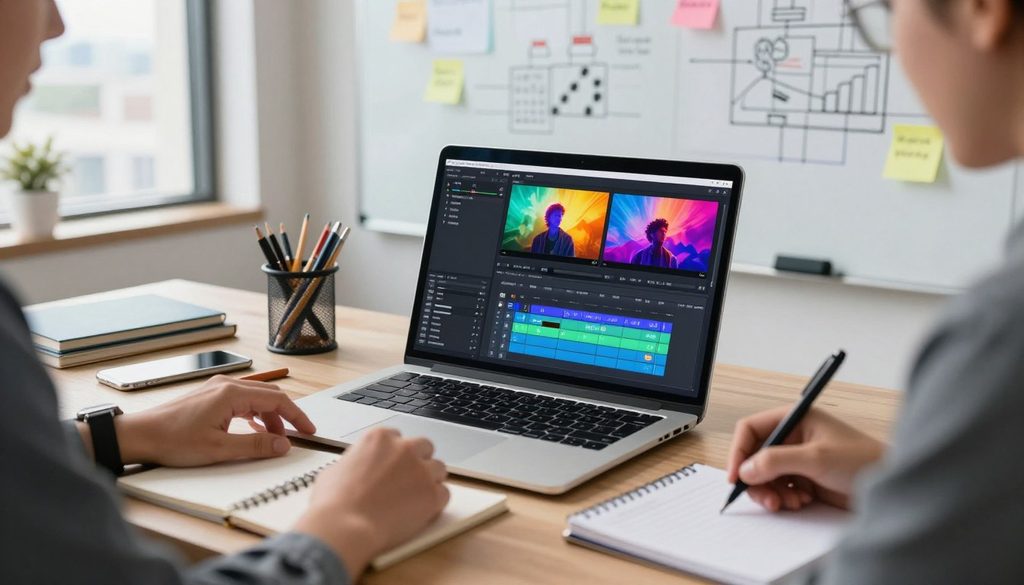
Start by setting clear goals for your project. Tell the AI who the video is for, what it’s about, and the tone you want. Also, decide on the video’s length. This helps the AI pace the content well, keeping the narrative flow smooth.
Break the message into concise scenes with one purpose each
Don’t try to cram too much into one scene. Break your script into smaller parts. Each part should have a clear goal. This makes the video easy to follow and keeps it engaging.
Describe visuals instead of relying on broad or abstract requests
To get the best AI-generated visuals, be specific. Talk about the lighting, camera angles, and actions. This helps the AI create visuals that feel thoughtful, not random.
Use natural spoken language for narration and avatar dialogue
AI tools work best with scripts that sound like real people. Avoid formal or robotic language. Use conversational language to make your video feel real and relatable.
Revise one element at a time when the output misses the goal
If the first version isn’t perfect, don’t change everything at once. Focus on one thing, like the script’s tone or a scene’s description. This iterative approach helps you improve without wasting time on big changes.
How to Improve AI-Generated Visuals, Voices, and Captions
Technology does a lot, but humans are key to making your video great. Even top AI video editing tools can make small mistakes. Always check your video before sharing to keep it professional.
Replace inaccurate images and distracting stock footage
AI tools might pick images that don’t quite fit. Always check each scene to make sure the AI-generated visuals match your script. If a clip doesn’t fit, change it with something better from your collection.
Check pronunciation, pacing, lip synchronization, and unnatural pauses
Listening to your video is important to catch awkward parts. An AI voiceover might get some words wrong or sound off. Look out for:
- Unnatural pauses between sentences.
- Poor lip syncing with the avatar.
- Pacing that’s too fast or slow.
Correct captions for spelling, timing, and accessibility
Many viewers watch videos without sound, so automatic captions are key. But, these tools can make mistakes. Always check that captions are right on time and easy to read.
Keep fonts, colors, logos, and transitions visually consistent
Your video should look like it’s part of your brand. Make sure all text overlays use your brand’s fonts and colors. Also, keep transitions smooth to avoid jarring the viewer.
Use human voice recording when emotional nuance matters
AI can’t always capture the exact feeling you want. For deep emotions or specific tones, use a human voice. Human narration brings a real touch that connects with your audience better.
How to Compare Free Plans, Paid Plans, and Export Limits
Before you sign up, know what you’re getting. Many people just look at the cost. But the real value is in what you can do and what you can’t.
Check watermarks, resolution limits, and monthly generation credits
Free plans often have watermarks that make your videos look bad. Also, check the max resolution. Some free plans only go up to 720p, not 1080p or 4K.
Monthly generation credits are important too. Some tools count every edit or preview. This can use up your credits fast.
Compare stock media, templates, voices, avatars, and editing access
The library size matters a lot. A good tool has lots of stock clips, templates, and AI voices. These save you a lot of time.
See if you can upload your own stuff. Also, make sure the video export formats work with where you want to share your videos.
Review commercial-use rights for business and client projects
If you’re making videos for work, check the commercial rights. Some plans only let you use them for personal stuff.
Using a tool without the right commercial rights can cause legal problems. Make sure your plan lets you share your videos where you want.
Test the free plan before committing to a subscription
Try out the tool with a real project. See if it’s easy to use and if the quality is good enough.
Testing a free AI video generator helps you find issues before you pay. This way, you make sure it fits your needs.
| Feature | Free Plan | Paid Plan |
| Watermarks | Included | Removed |
| Resolution | 720p Limit | 1080p/4K |
| Export Formats | Limited | Full Access |
| Commercial Use | No | Yes |
Common Beginner Mistakes When Using AI Video Tools
Using AI video tools is not just about subscribing. It’s about avoiding common mistakes that can ruin your work. AI video editing tools are powerful, but they can’t do everything on their own.
Trying to create a full video from an overly broad prompt
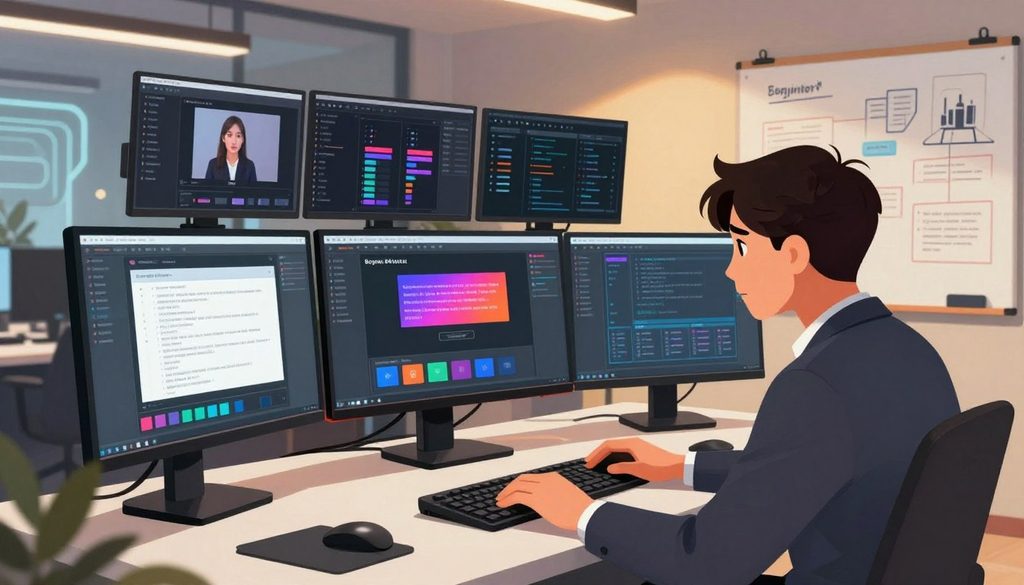
New users often try to make a whole video with just one vague sentence. This usually leads to generic content that lacks focus. To do better, give detailed video prompts that outline the tone, audience, and story of your video.
Publishing the first generated draft without fact-checking it
It’s tempting to share the first AI draft right away. But, this is a big mistake. AI can make up facts, misspell names, or get data wrong. Always check your script and text for accuracy before sharing.
Using generic visuals that do not support the spoken message
AI-generated visuals might look good but not always make sense. If the images don’t match your script, viewers will get confused. Make sure every scene has a clear purpose in your story.
Adding excessive effects, text, music, or scene changes
Beginners might want to use every feature in the software. But, too many effects or changes can confuse viewers. Simplicity is usually more effective than a busy, over-edited video.
Ignoring platform specifications and mobile viewing behavior
A video made for a desktop might not work on a smartphone. You need to think about screen size, text, and pace for mobile users. If your text is too small or your pace is too slow, viewers might skip your video.
| Common Mistake | Impact on Audience | Recommended Fix |
| Broad Prompts | Confused messaging | Use specific, detailed instructions |
| Unchecked Drafts | Loss of credibility | Verify all facts and spelling |
| Irrelevant Visuals | Disengaged viewers | Match imagery to the script |
| Excessive Effects | Visual fatigue | Keep edits clean and purposeful |
Safety, Copyright, and Quality Checks Before Publishing
Before you share your AI video creation, make sure it’s right and legal. AI video generators for beginners speed things up, but humans must check the work. This step keeps your content professional and reliable.
Verify facts, names, statistics, and product claims in the script
AI tools can make mistakes or give old info. Always check names, stats, and product claims against trusted sources before you’re done.
Use licensed music, footage, images, and brand assets
Using copyrighted material without permission is risky. Make sure all your assets, like music and stock clips, are licensed for your project.
Obtain consent before using a person’s face or voice
Using someone’s likeness needs their okay. Never use a real person’s face or voice without their consent to avoid legal trouble.
Label synthetic presenters or altered media when transparency is appropriate
Being open builds trust. If your video uses AI avatars or altered media, tell your viewers with a clear label or disclaimer.
Watch the complete video on mobile before sharing it publicly
Most people watch videos on phones. Testing your video on a mobile device helps catch issues with text, sound, and pace that might not show up on a computer.
| Checklist Item | Action Required | Priority |
| Fact-Checking | Verify all data points | High |
| Licensing | Confirm asset rights | High |
| Consent | Secure written permission | Critical |
| Transparency | Add synthetic media labels | Medium |
| Mobile Test | Review on smartphone | High |
A Beginner-Friendly Workflow for Consistent Video Creation
Creating a reliable workflow makes video making easy and repeatable. It helps creators make great content without getting stuck on beginner-friendly AI video tools. Whether it’s short-form video or longer explainers, a routine is key to success.
Plan one repeatable format for a specific platform
Success often starts by mastering one platform at a time. Pick a format that fits your audience, like a weekly tip. Sticking to one style helps you know what your viewers like.
Create a reusable script, branding, and caption template
Being efficient means not starting from scratch every time. Make a standard script and keep your branded videos consistent. Use saved colors and logos. A caption template keeps your text professional and easy to read.
Generate a rough cut before spending time on detailed edits
Don’t get lost in details too early. Always make a rough cut first. This ensures your story flows well. Only refine details like transitions and color grading later.
Collect feedback from a small audience and track performance
Share your draft with a few trusted friends before publishing. Listen to their feedback and watch your analytics. This helps you see what your audience likes.
Move to a more advanced tool only when the workflow requires it
Don’t rush to use complex software too soon. Wait until you really need it. Simplicity is often your greatest asset in the early stages.
| Workflow Stage | Primary Goal | Key Benefit |
| Planning | Define format | Saves time |
| Templating | Standardize assets | Ensures consistency |
| Rough Cut | Verify narrative | Reduces rework |
| Review | Gather insights | Improves quality |
Conclusion
Choosing the best AI video generator depends on your goals, workflow, and budget. Each creator has different needs. Some want simple tools like Canva and Adobe Express for their projects.
Others need more power from tools like CapCut, VEED, Pictory, HeyGen, and Synthesia. These tools are great for beginners.
Success comes from picking the right tool for your project. It’s also about having a clear idea of what you want your final product to be.
Start with a simple project to build your confidence. Look at every result to make sure it’s good and fits your brand. Getting better at this takes time and practice.
The world of AI video tools is always changing. Keep trying new things to learn and grow. The best way to get better is to keep making videos.
FAQ
Which AI video generator is best for someone with zero editing experience?
Canva and Adobe Express are great for beginners. They have easy-to-use interfaces and lots of templates. For videos from text, InVideo AI and Pictory make it easy to find stock footage and add automated captions.
Can these tools create professional-looking videos for social media like TikTok and Instagram?
Yes, CapCut and VEED are perfect for short videos. They have tools for aspect ratio, cool transitions, and AI-powered filters. This makes videos fit right in with YouTube Shorts or Reels.
How can a user turn a written script or a blog post into a finished video?
Pictory and InVideo AI make this easy. Just paste your text. The AI picks the right B-roll, adds a voiceover, and makes scene changes. This way, you can make educational content without filming.
Are there AI tools that feature realistic human presenters for corporate use?
For business talks and workplace training, Synthesia and HeyGen are top choices. They use AI avatars that look and act like real people. This lets companies make videos without hiring actors or using expensive cameras.
What should a beginner look for when comparing free versus paid plans?
Check for watermarks on exported files and how many monthly generation credits you get. Make sure the export resolution is at least 1080p for quality. Also, see if the tool lets you use the video for business.
Is it possible to use a custom voice instead of a synthetic one?
Many tools now let you use your own human voice recording. While AI voices are quick, a real voice adds emotional nuance and natural pacing. This is great for personal or sensitive marketing campaigns.
What are the most common mistakes beginners make with AI video tools?
Users often use too broad prompts, getting generic results. Another mistake is publishing without checking for factual accuracy or brand consistency. Always review names and make sure the visual style fits your audience.
How can a creator make sure their AI-generated video looks unique and not like a template?
To avoid a generic look, customize the color palette and add your own branded assets. Swap out common stock clips. Try Runway for unique generative visuals that don’t rely on standard libraries.
Do creators need to disclose that a video was made with AI?
Yes, being open about AI use is key in digital ethics. Many platforms and brand guidelines suggest labeling synthetic presenters or altered media. This builds trust and ensures audience transparency.
What is the best way to ensure an AI video performs well on mobile devices?
Use large text overlays and a 9:16 vertical aspect ratio for mobile. Make sure accurate captions and high-contrast visuals are used. This keeps viewers engaged on apps like Instagram or TikTok.